---
title: Set up Budget Control
description: Turn on Budget Control in Spaceship Pro to flag any Shopify order whose estimated shipping fee exceeds the percentage limit you set for that store.
---
[Skip to content](https://support.spaceshipapp.com/en/set-up-budget-control#main-content)
- [English](https://support.spaceshipapp.com/en/set-up-budget-control)
- [中文 - 香港](https://support.spaceshipapp.com/zh-hk/set-up-budget-control)
English
Show submenu for translations
![Logo 2.png\]](https://support.spaceshipapp.com/hs-fs/hubfs/Logo%202.png?height=40&name=Logo%202.png)
Open main navigation
Close main navigation
- - [English](https://support.spaceshipapp.com/en/set-up-budget-control)
- [中文 - 香港](https://support.spaceshipapp.com/zh-hk/set-up-budget-control)
English
Show submenu for translations
- [Go to spaceshipapp.com](https://www.spaceshipapp.com/)
[Go to spaceshipapp.com](https://www.spaceshipapp.com/)
How can we help you?
- There are no suggestions because the search field is empty.
1. [Help Center](https://support.spaceshipapp.com/en)
2. [Spaceship Pro Setting](https://support.spaceshipapp.com/en/spaceship-pro-setting)
3. [Other Settings](https://support.spaceshipapp.com/en/spaceship-pro-setting#other-settings)
# Set up Budget Control
## Review a Shopify order when its estimated shipping fee exceeds the percentage limit set for that store.
### Enable Budget Control
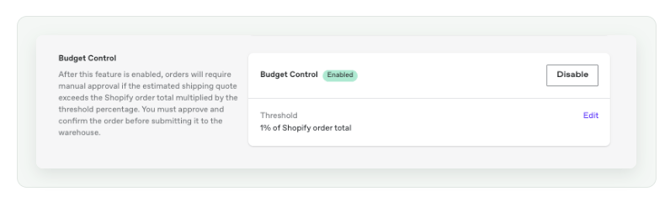
1. Go to **Store Integrations**.
2. Open the relevant Shopify store.
3. Find **Budget Control** and select **Enable**.
4. Select **Edit** beside Threshold.
5. Enter the maximum shipping-cost percentage and select **Save**.
****
### Set the threshold
Select **Edit**, enter the percentage limit and save the setting.
**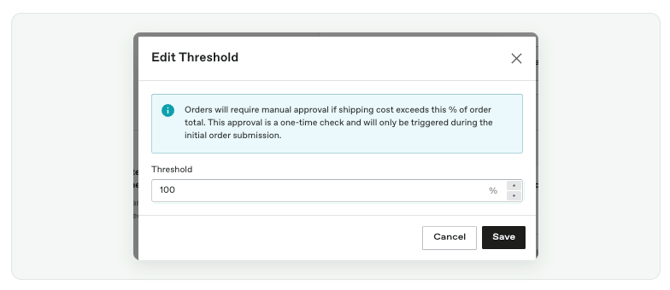**
**Example:** If the order total is HKD 100 and the threshold is 50%, the order requires review when the estimated shipping fee exceeds HKD 50.
### Review an order
#### 1. Find the affected order
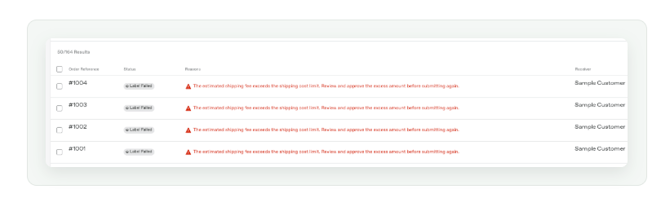
Open **Actions Required** and select an order with the message that its estimated shipping fee exceeds the shipping-cost limit.
****
#### 2. Review the cost
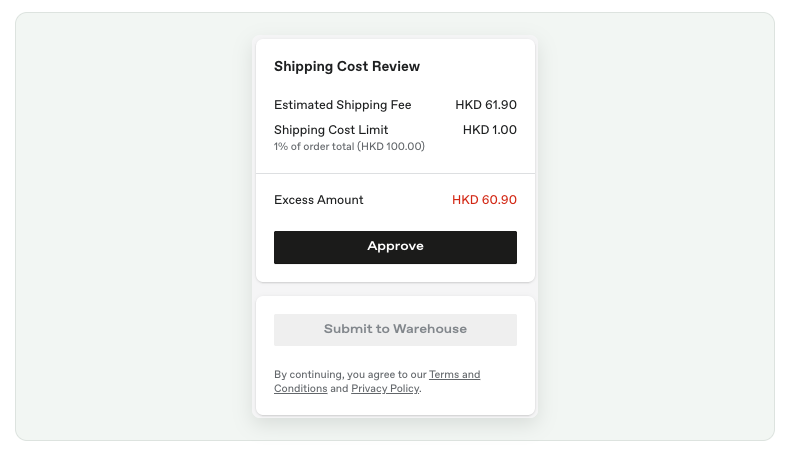
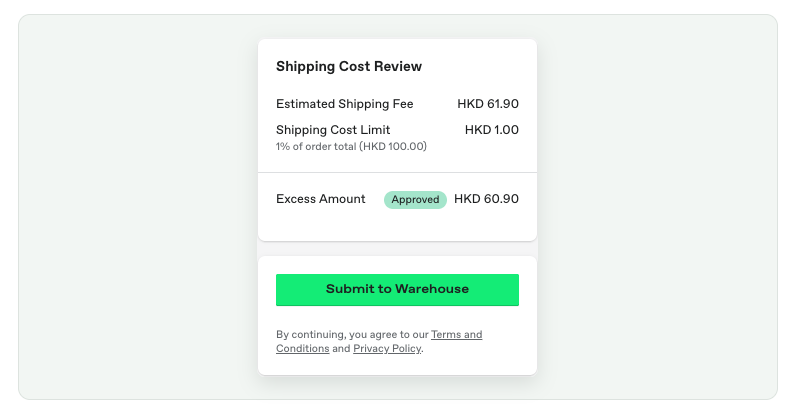
Compare the **Estimated Shipping Fee**, **Shipping Cost Limit** and **Excess Amount**.
#### 3. Approve and confirm
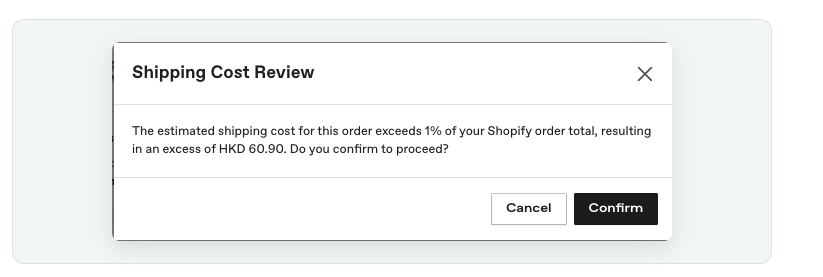
Select **Approve**. Check the percentage and excess amount in the confirmation window, then select **Confirm**.
#### 4. Submit the approved order
After the excess amount shows as **Approved**, select **Submit to Warehouse**.
#### Important notes
- The setting applies only to the Shopify store where it is enabled.
- The check takes place during the initial order submission.
- Orders without an available Shopify order total cannot be evaluated using this percentage rule.
*Last Updated on 3 Sep 2026*
- [Latest News](https://support.spaceshipapp.com/en/latest-news#main-content)
- [Bad Weather and Holiday Arrangement](https://support.spaceshipapp.com/en/latest-news#bad-weather-and-holiday-arrangement)
- [Spaceship Fee](https://support.spaceshipapp.com/en/spaceship-fee#main-content)
- [Spaceship Fee](https://support.spaceshipapp.com/en/spaceship-fee#spaceship-fee)
- [HK Courier Additional Surcharge](https://support.spaceshipapp.com/en/spaceship-fee#hk-courier-additional-surcharge)
- [China Courier Additional Surcharge](https://support.spaceshipapp.com/en/spaceship-fee#china-courier-additional-surcharge)
- [Courier](https://support.spaceshipapp.com/en/courier#main-content)
- [Spaceship Air](https://support.spaceshipapp.com/en/courier#spaceship-air)
- [Other Courier](https://support.spaceshipapp.com/en/courier#other-courier)
- [Spaceship Pro User Guide](https://support.spaceshipapp.com/en/spaceship-pro-user-guide#main-content)
- [Fulfilment Service](https://support.spaceshipapp.com/en/spaceship-pro-user-guide#fulfilment-service)
- [Shipping Service](https://support.spaceshipapp.com/en/spaceship-pro-user-guide#shipping-service)
- [Collection](https://support.spaceshipapp.com/en/spaceship-pro-user-guide#collection)
- [Billing & Payments](https://support.spaceshipapp.com/en/spaceship-pro-user-guide#billing-payments)
- [Industry Guide](https://support.spaceshipapp.com/en/spaceship-pro-user-guide#industry-guide)
- [Spaceship Pro Setting](https://support.spaceshipapp.com/en/spaceship-pro-setting#main-content)
- [Store Integrations](https://support.spaceshipapp.com/en/spaceship-pro-setting#store-integrations)
- [Carriers](https://support.spaceshipapp.com/en/spaceship-pro-setting#carriers)
- [Products Management](https://support.spaceshipapp.com/en/spaceship-pro-setting#products-management)
- [Shipping Automation](https://support.spaceshipapp.com/en/spaceship-pro-setting#shipping-automation)
- [Other Settings](https://support.spaceshipapp.com/en/spaceship-pro-setting#other-settings)
- [Customs Clearance](https://support.spaceshipapp.com/en/customs-clearance#main-content)
- [Duty & Tax](https://support.spaceshipapp.com/en/customs-clearance#duty-tax)
- [Country Regulation](https://support.spaceshipapp.com/en/customs-clearance#country-regulation)
- [Commodity Restrictions & Compliance](https://support.spaceshipapp.com/en/commodity-restrictions-compliance#main-content)
- [Restricted/ Prohibited items](https://support.spaceshipapp.com/en/commodity-restrictions-compliance#restricted-prohibited-items)
- [Restricted/ Sensitive Shipping Items Reminder](https://support.spaceshipapp.com/en/commodity-restrictions-compliance#restricted-sensitive-shipping-items-reminder)
- [Lithium Batteries Shipping](https://support.spaceshipapp.com/en/commodity-restrictions-compliance#lithium-batteries-shipping)
- [Customer Service Support](https://support.spaceshipapp.com/en/customer-service-support#main-content)
- [Shipping 101](https://support.spaceshipapp.com/en/customer-service-support#shipping-101)
- [Business Customer Helpdesk](https://support.spaceshipapp.com/en/customer-service-support#business-customer-helpdesk)
- [About Claim](https://support.spaceshipapp.com/en/customer-service-support#about-claim)
- [FAQ](https://support.spaceshipapp.com/en/customer-service-support#faq)
- [Spaceship Care](https://support.spaceshipapp.com/en/spaceship-care)
- [General Shippers Reminders](https://support.spaceshipapp.com/en/general-shippers-reminders#main-content)
- [Frequently Asked Questions](https://support.spaceshipapp.com/en/general-shippers-reminders#frequently-asked-questions)
[](https://www.spaceshipapp.com/)
Help Center
Copyright © 2026, Spaceship