---
title: Set up Multi-User Access
description: Request Multi-User Access for Spaceship Pro, then add or remove team member logins from Settings and see what the account owner still controls.
---
[Skip to content](https://support.spaceshipapp.com/en/set-up-multi-user-access#main-content)
English
Show submenu for translations
![Logo 2.png\]](https://support.spaceshipapp.com/hs-fs/hubfs/Logo%202.png?height=40&name=Logo%202.png)
Open main navigation
Close main navigation
- English
Show submenu for translations
- [Go to spaceshipapp.com](https://www.spaceshipapp.com/)
[Go to spaceshipapp.com](https://www.spaceshipapp.com/)
How can we help you?
- There are no suggestions because the search field is empty.
1. [Help Center](https://support.spaceshipapp.com/en)
2. [Spaceship Pro Setting](https://support.spaceshipapp.com/en/spaceship-pro-setting)
3. [Other Settings](https://support.spaceshipapp.com/en/spaceship-pro-setting#other-settings)
# Set up Multi-User Access
## Give team members individual Spaceship Pro logins while the account owner retains control of sensitive account settings.
The new user’s email address must not already be registered with Spaceship. Ask the new user to change the temporary password after their first sign-in.The new user’s email address must not already be registered with Spaceship. Ask the new user to change the temporary password after their first sign-in.
### Request Multi-User Access
Multi-User Access must first be enabled by Spaceship. Contact your Spaceship account manager and provide:
- the email address registered to the Spaceship Pro account; and
- the email address of each team member who needs access.
Spaceship will confirm once the feature has been enabled. Please double-check every email address before submitting the request.
**Need access?** Reply to your Spaceship account manager with your registered account email and the member email addresses you want to add.
### Add a user after activation
1. After Spaceship confirms activation, sign in as the account owner.
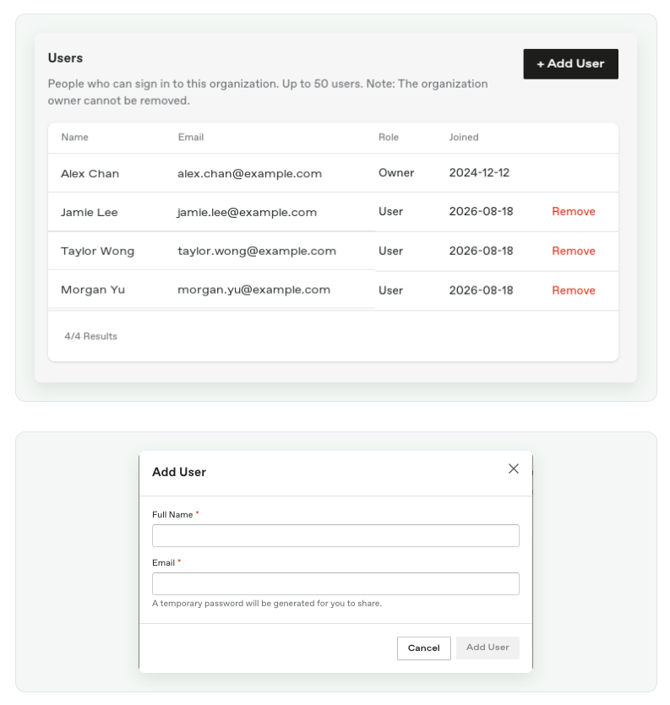
2. Go to **Settings → Users**.
3. Select **Add User**.
4. Enter the team member’s full name and email address.
5. Select **Add User** to create the account.
6. Copy the temporary password and share it through a secure channel. It is displayed only once.
### Owner and user access
Team members can handle everyday shipping and fulfilment work. The owner retains access to billing, payment settings, carrier accounts, store integrations and user management.
**Important:** The new user’s email address must not already be registered with Spaceship. Ask the new user to change the temporary password after their first sign-in.
### Remove a user
Go to **Settings → Users**, select **Remove** beside the relevant user and confirm. Their access ends immediately, while existing organisation records remain available.
*Last Updated on 2 Sep 2026*
- [Latest News](https://support.spaceshipapp.com/en/latest-news#main-content)
- [Bad Weather and Holiday Arrangement](https://support.spaceshipapp.com/en/latest-news#bad-weather-and-holiday-arrangement)
- [Spaceship Fee](https://support.spaceshipapp.com/en/spaceship-fee#main-content)
- [Spaceship Fee](https://support.spaceshipapp.com/en/spaceship-fee#spaceship-fee)
- [HK Courier Additional Surcharge](https://support.spaceshipapp.com/en/spaceship-fee#hk-courier-additional-surcharge)
- [China Courier Additional Surcharge](https://support.spaceshipapp.com/en/spaceship-fee#china-courier-additional-surcharge)
- [Courier](https://support.spaceshipapp.com/en/courier#main-content)
- [Spaceship Air](https://support.spaceshipapp.com/en/courier#spaceship-air)
- [Other Courier](https://support.spaceshipapp.com/en/courier#other-courier)
- [Spaceship Pro User Guide](https://support.spaceshipapp.com/en/spaceship-pro-user-guide#main-content)
- [Fulfilment Service](https://support.spaceshipapp.com/en/spaceship-pro-user-guide#fulfilment-service)
- [Shipping Service](https://support.spaceshipapp.com/en/spaceship-pro-user-guide#shipping-service)
- [Collection](https://support.spaceshipapp.com/en/spaceship-pro-user-guide#collection)
- [Billing & Payments](https://support.spaceshipapp.com/en/spaceship-pro-user-guide#billing-payments)
- [Industry Guide](https://support.spaceshipapp.com/en/spaceship-pro-user-guide#industry-guide)
- [Spaceship Pro Setting](https://support.spaceshipapp.com/en/spaceship-pro-setting#main-content)
- [Store Integrations](https://support.spaceshipapp.com/en/spaceship-pro-setting#store-integrations)
- [Carriers](https://support.spaceshipapp.com/en/spaceship-pro-setting#carriers)
- [Products Management](https://support.spaceshipapp.com/en/spaceship-pro-setting#products-management)
- [Shipping Automation](https://support.spaceshipapp.com/en/spaceship-pro-setting#shipping-automation)
- [Other Settings](https://support.spaceshipapp.com/en/spaceship-pro-setting#other-settings)
- [Customs Clearance](https://support.spaceshipapp.com/en/customs-clearance#main-content)
- [Duty & Tax](https://support.spaceshipapp.com/en/customs-clearance#duty-tax)
- [Country Regulation](https://support.spaceshipapp.com/en/customs-clearance#country-regulation)
- [Commodity Restrictions & Compliance](https://support.spaceshipapp.com/en/commodity-restrictions-compliance#main-content)
- [Restricted/ Prohibited items](https://support.spaceshipapp.com/en/commodity-restrictions-compliance#restricted-prohibited-items)
- [Restricted/ Sensitive Shipping Items Reminder](https://support.spaceshipapp.com/en/commodity-restrictions-compliance#restricted-sensitive-shipping-items-reminder)
- [Lithium Batteries Shipping](https://support.spaceshipapp.com/en/commodity-restrictions-compliance#lithium-batteries-shipping)
- [Customer Service Support](https://support.spaceshipapp.com/en/customer-service-support#main-content)
- [Shipping 101](https://support.spaceshipapp.com/en/customer-service-support#shipping-101)
- [Business Customer Helpdesk](https://support.spaceshipapp.com/en/customer-service-support#business-customer-helpdesk)
- [About Claim](https://support.spaceshipapp.com/en/customer-service-support#about-claim)
- [FAQ](https://support.spaceshipapp.com/en/customer-service-support#faq)
- [Spaceship Care](https://support.spaceshipapp.com/en/spaceship-care)
- [General Shippers Reminders](https://support.spaceshipapp.com/en/general-shippers-reminders#main-content)
- [Frequently Asked Questions](https://support.spaceshipapp.com/en/general-shippers-reminders#frequently-asked-questions)
[](https://www.spaceshipapp.com/)
Help Center
Copyright © 2026, Spaceship